
Index
- What is identity verification, and why is it necessary?
- How does the verification process with Adyen work?
- When can I verify my identity?
- How can I verify myself as an individual?
- How can I verify myself as a self-employed individual or company?
- Verification for self-employed workers
- Verification for companies
- Is my data secure?
- What happens if the verification does not complete automatically?
- Other FAQs about verification
What is identity verification and why is it necessary?
Identity verification (Know Your Customer or KYC) is a legal requirement in New Zealand under the Anti-Money Laundering and Countering Financing of Terrorism Act 2009 (AML/CFT Act). Camplify, through Adyen, must confirm that the person or entity receiving payments is the legitimate account holder to prevent financial crime and ensure your earnings are sent securely.
How does the verification process with Adyen work?
Before you receive your rental income, Camplify must verify the identity of all individuals and entities renting vehicles on the platform. This is a one-time process and complies with New Zealand regulations regarding financial services and the prevention of money laundering.
Important: If you change your bank account or any essential information (name, address, or legal representative), you may need to complete the verification process again.
If your account is not yet verified, you will see the "Verify your identity" section in your dashboard, with the "Verify now" button. Clicking this will initiate the verification process through our third-party partner, Adyen, which securely validates your identity and bank details in accordance with Camplify terms, and the New Zealand Privacy Act 2020.
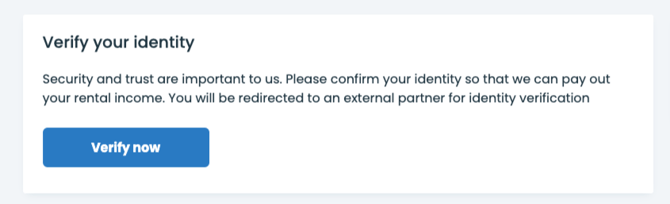
The information requested may vary depending on the type of account you indicated on Camplify:
- Individuals: personal and banking details in your name.
- Self-employed / Sole Traders: Personal and tax information, including your NZBN (if applicable) or IRD number.
- Companies: company details, legal representative and corporate bank account.
- Associations and other entities: details of the entity and its representatives.
Here you can find the list of documents that Adyen requires for each type.
The system will automatically detect the account type based on the information registered with Camplify. All data is processed securely and encrypted in compliance with the New Zealand Privacy Act 2020.
When can I verify my identity?
The “Verify your identity” section and the “Verify now” button will appear on your dashboard when:
-
You haven't completed the verification yet, or
-
Adyen may request a new review, for example, if you've updated your bank account, address, or other essential information.
(If you're already authorised to receive payments and a review isn't required, the button won't appear.)
Additionally, for the button to display correctly, make sure your profile is complete with:
- Birthdate
- Chosen form of ID Information (licence information)
- Address
- Bank account
You also need to have at least one active vehicle on the platform available for bookings.
How can I verify myself as an individual?
If you meet the above conditions and have not yet verified yourself, you will see the “Verify Now” button on your dashboard.
By clicking, you will be redirected to our provider Adyen, where you will need to confirm your personal details and bank account.
Select the “Individuals” option and click “Continue” .
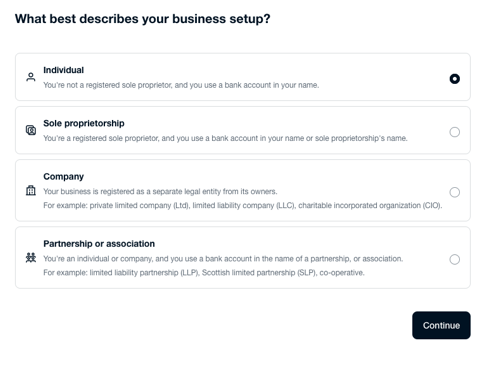
- Enter your personal details, review them and press “Submit” .
- If the automatic verification is not completed successfully, Adyen may request an additional document (for example, a photo of your ID card or passport).
All information provided must exactly match the information on your identity document.
You can find the requirements for accepted documents on the Adyen website here . - Once you have completed this step, you will return to the general summary and you will be able to enter your bank account details.
How can I verify myself as a self-employed individual or company?
If you meet the above conditions and have not yet verified yourself, you will see the “Verify Now” button on your dashboard.
By clicking, you will be redirected to our provider Adyen , where you will need to confirm your personal details and bank account.
Verification for self-employed workers
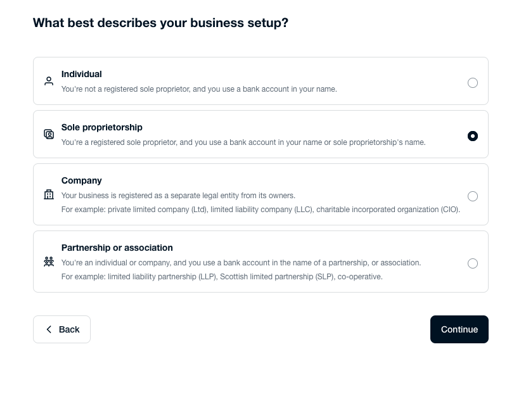
In the Adyen settings panel, review the section "What best describes your business setup?" and make sure it corresponds to the correct option. In this case, it would be the "Sole proprietorship" option, and click "Continue".
In the "Set up your account" section, under the text "Business settings: Self-employed," you will find three sections that you must complete:
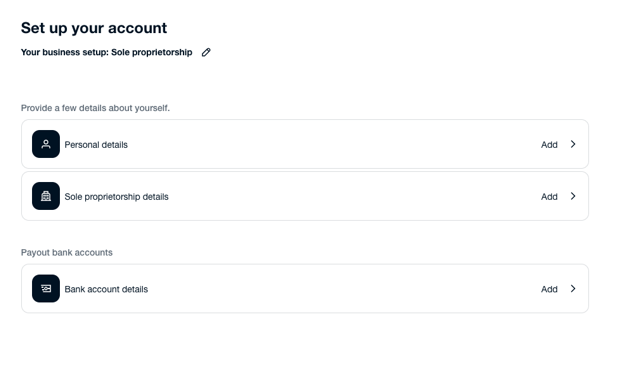
- Personal data
- Enter your full name, date of birth, address, and contact information.
- This information must match your identity document.
- Self-employed data
- State the legal name of the business (for example, your own name or the trade name you operate under).
- Add your tax identification number, or NZBN number, and the tax address where you carry out your activity.
💡 Tip: Check that all the information is correct before sending, as the data must exactly match what appears on your ID or tax documents.
Verification for companies
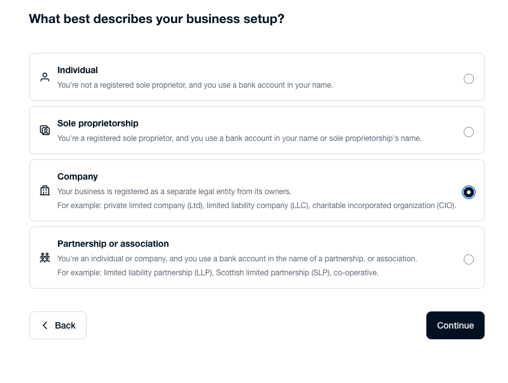
In the Adyen settings panel, review the section "What best describes your business setup?" and make sure it corresponds to the correct option, in this case it would be the "Company" option , and click "Continue" .
If you register your business as a company, you will see the "Business Settings: Company" section in your dashboard , with three blocks that you must complete:
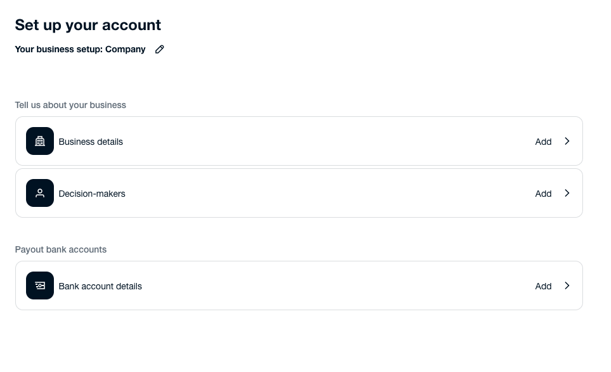
- Company details
- Enter the company's legal name and its NZBN (New Zealand Business Number).
- Add the company's tax address or registered office .
- If you do not have a business registration number (in cases such as joint ownership communities), you can enter “000000” in the corresponding field.
- Decision makers
- Here you must add the details of the person or persons acting as legal representatives or authorized signatories .
- Click on “Add” and enter the name , position (for example, administrator or managing partner) and the personal details shown on your identity document.
- It is mandatory to register at least one authorised signatory .
Note on associations and other entities
If your business belongs to the category “Associations and others” (for example, a foundation, association, cooperative, civil society or public entity), the verification process is very similar to that of companies .
In these cases:
- Select the appropriate option under business type.
- Complete the same sections (Entity Data , Decision Makers and Bank Account Details).
- Adyen may request additional documentation (e.g., articles of association, registration certificate, or document proving legal representation).
Is my data secure?
Yes. Your identity verification is carried out in accordance with the Information Privacy Principles (IPPs) set out in the New Zealand Privacy Act 2020 and global financial security standards. All information is transmitted using bank-grade encryption.
What happens if the verification does not complete automatically?
If automatic verification fails, Adyen may request additional documents, such as:
- Another form of ID, or a clearer copy of the initial ID provided.
- A formal letter or bill reflecting your name & address.
- In the case of companies or associations, a New Zealand Companies Office extract or a certificate from the corresponding registry may be requested.
All data must exactly match the documents submitted.
Other frequently asked questions about verification with Adyen
How long does the verification take?
Typically, automated verification is completed within minutes. If Adyen needs to review additional documents, the process may take between 24 and 72 hours.
Can I receive payments without verifying my identity?
No. You need to complete the verification process to receive your rental income.
What do I do if Adyen asks me for more documents?
Please verify that the information you entered matches exactly what is on your chosen form of ID. Upload the requested files directly to the Adyen platform.
I have further questions regarding verification, who can I speak with?
Please reach out to our team via live-chat on the website, we're happy to answer any further questions you may have.